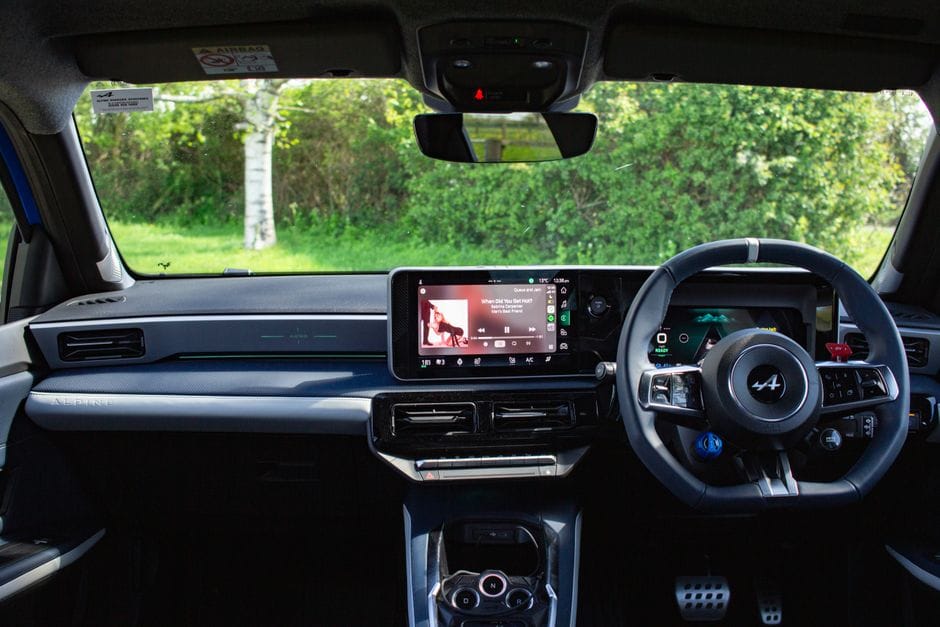
Phone mirroring put a familiar, always-updated interface on the dashboard, replacing clunky built-in systems. Apple CarPlay and Android Auto both project your phone's maps, music and messages onto the car's screen, and getting them running cleanly takes only a few minutes.
Wired vs Wireless
The simplest setup is a cable: plug the phone into the correct USB port, the one marked with a phone or CarPlay icon if your car has several, and the interface appears. Many newer cars support wireless connection over Wi-Fi and Bluetooth, which is convenient but occasionally less stable. A wired connection also keeps the phone charged, which matters on long trips with navigation running.
First-Time Connection
- Apple CarPlay: connect by cable, accept the prompt on the phone, and allow access while locked if you want it to start automatically.
- Android Auto: install or update the app, connect, and grant the permissions it asks for.
- For wireless, pair over Bluetooth first; the phone then switches to Wi-Fi for the screen.
When It Won't Connect
Most failures are a bad cable or the wrong port. Use a quality data cable, not a cheap charge-only one, and try the labeled USB port. If it still won't link, restart the phone, toggle Bluetooth, and check that the car's software is up to date. Forgetting and re-pairing the device clears up most wireless glitches.
Use It Safely
Set your destination and playlist before you drive, then lean on voice control for everything after that; a simple press of the steering-wheel button lets you ask for directions or send a text hands-free. Keep notifications light so the screen isn't a distraction. Done right, mirroring gives you accurate maps and easy audio without ever taking your hands off the wheel.